fluttercommunity / fluttercommunity/flutter_webview_plugin
How to add images and more button at Homepage?
- 主要语言
- Java
- 星标
- 1.5k
- 派生
- 938
- PR 合并指标
- 30 天内没有已合并 PR
描述
**Big thank you to the developer team to add example application here.
I have try to implement on some website but not getting solution for below problem.
1) This image taken from google chrome browser. Showing space properly between wifi signal and website search magnifier glass.**
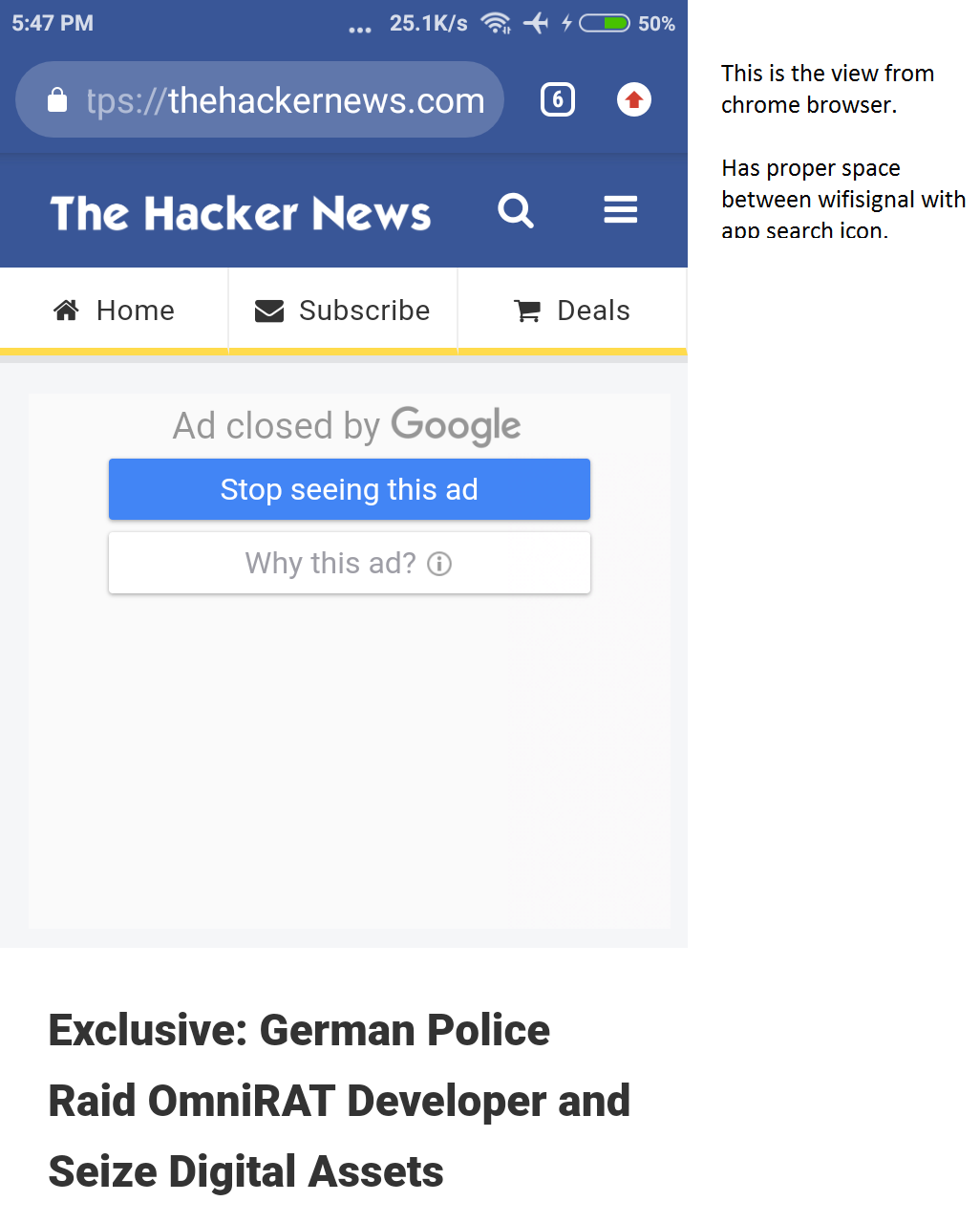
**2) This image taken from webview application installation. How to add space between wifi signal and website search magnifier glass?**

**3) how can i add more button and open link in app. Also want to one images on top of the app.**

```
import 'dart:async';
import 'package:flutter/material.dart';
import 'package:flutter_webview_plugin/flutter_webview_plugin.dart';
import 'package:url_launcher/url_launcher.dart';
const kAndroidUserAgent =
'Mozilla/5.0 (Linux; Android 6.0; Nexus 5 Build/MRA58N) AppleWebKit/537.36 (KHTML, like Gecko) Chrome/62.0.3202.94 Mobile Safari/537.36';
String selectedUrl = 'https://thehackernews.com/';
void main() => runApp(MyApp());
class MyApp extends StatelessWidget {
final flutterWebViewPlugin = FlutterWebviewPlugin();
@override
Widget build(BuildContext context) {
return MaterialApp(
title: 'The Hacker News',
debugShowCheckedModeBanner: false,
theme: ThemeData(
primarySwatch: Colors.blue,
),
routes: {
'/': (_) => const MyHomePage(title: 'The Hacker News'),
'/widget': (_) {
return WebviewScaffold(
url: selectedUrl,
appBar: AppBar(
title: const Text('The Hacker News'),
),
withZoom: true,
withLocalStorage: true,
hidden: true,
initialChild: Container(
color: Colors.redAccent,
child: const Center(
child: Text('Waiting.....'),
),
),
bottomNavigationBar: BottomAppBar(
child: Row(
children: [
IconButton(
icon: const Icon(Icons.arrow_back_ios),
onPressed: () {
flutterWebViewPlugin.goBack();
},
),
IconButton(
icon: const Icon(Icons.arrow_forward_ios),
onPressed: () {
flutterWebViewPlugin.goForward();
},
),
IconButton(
icon: const Icon(Icons.autorenew),
onPressed: () {
flutterWebViewPlugin.reload();
},
),
],
),
),
);
},
},
);
}
}
class MyHomePage extends StatefulWidget {
const MyHomePage({Key key, this.title}) : super(key: key);
final String title;
@override
_MyHomePageState createState() => _MyHomePageState();
}
class _MyHomePageState extends State {
// Instance of WebView plugin
final flutterWebViewPlugin = FlutterWebviewPlugin();
// On destroy stream
StreamSubscription _onDestroy;
// On urlChanged stream
StreamSubscription _onUrlChanged;
// On urlChanged stream
StreamSubscription _onStateChanged;
StreamSubscription _onHttpError;
//StreamSubscription _onProgressChanged;
StreamSubscription _onScrollYChanged;
StreamSubscription _onScrollXChanged;
final _urlCtrl = TextEditingController(text: selectedUrl);
final _codeCtrl = TextEditingController(text: 'window.navigator.userAgent');
final _scaffoldKey = GlobalKey();
final _history = [];
@override
void initState() {
super.initState();
flutterWebViewPlugin.close();
_urlCtrl.addListener(() {
selectedUrl = _urlCtrl.text;
});
// Add a listener to on destroy WebView, so you can make came actions.
_onDestroy = flutterWebViewPlugin.onDestroy.listen((_) {
if (mounted) {
// Actions like show a info toast.
_scaffoldKey.currentState.showSnackBar(const SnackBar(content: const Text('HomePage')));
}
});
// Add a listener to on url changed
_onUrlChanged = flutterWebViewPlugin.onUrlChanged.listen((String url) {
if (mounted) {
setState(() {
_history.add('onUrlChanged: $url');
});
}
});
/* _onProgressChanged = flutterWebViewPlugin.onProgressChanged.listen((double progress) {
if (mounted) {
setState(() {
_history.add("onProgressChanged: $progress");
});
}
});*/
_onScrollYChanged = flutterWebViewPlugin.onScrollYChanged.listen((double y) {
if (mounted) {
setState(() {
_history.add('Scroll in Y Direction: $y');
});
}
});
_onScrollXChanged = flutterWebViewPlugin.onScrollXChanged.listen((double x) {
if (mounted) {
setState(() {
_history.add('Scroll in X Direction: $x');
});
}
});
_onStateChanged = flutterWebViewPlugin.onStateChanged.listen((WebViewStateChanged state) {
if (mounted) {
setState(() {
_history.add('onStateChanged: ${state.type} ${state.url}');
});
}
});
_onHttpError = flutterWebViewPlugin.onHttpError.listen((WebViewHttpError error) {
if (mounted) {
setState(() {
_history.add('onHttpError: ${error.code} ${error.url}');
});
}
});
}
@override
void dispose() {
// Every listener should be canceled, the same should be done with this stream.
_onDestroy.cancel();
_onUrlChanged.cancel();
_onStateChanged.cancel();
_onHttpError.cancel();
//_onProgressChanged.cancel();
_onScrollXChanged.cancel();
_onScrollYChanged.cancel();
flutterWebViewPlugin.dispose();
super.dispose();
}
@override
Widget build(BuildContext context) {
return Scaffold(
key: _scaffoldKey,
appBar: AppBar(
title: const Text('The Hacker News'),
),
drawer: Drawer(
child: ListView(
padding: EdgeInsets.zero,
children: [
DrawerHeader(
child: Text(''),
decoration: BoxDecoration(
color: Colors.blue,
image: DecorationImage(
image: AssetImage("assets/logo.jpg"),
fit: BoxFit.cover,
)
),
),
ListTile (
title: Text('Text 1'),
onTap: (){
Navigator.pop(context);
},
),
ListTile (
title: Text('Text 2'),
onTap: (){
Navigator.pop(context);
},
),
ListTile (
title: Text('Text 3'),
onTap: (){
Navigator.pop(context);
},
),
ListTile (
title: Text('Text 4'),
onTap: (){
Navigator.pop(context);
},
),
ListTile (
title: Text('Text 5'),
onTap: () => launch('https://thehackernews.com/p/about-us.html')
),
],
),
),
body: Column(
mainAxisAlignment: MainAxisAlignment.center,
children: [
RaisedButton(
onPressed: () {
flutterWebViewPlugin.launch(selectedUrl);
},
child: const Text('TheHeackerNews.com'),
),
RaisedButton(
onPressed: () {
flutterWebViewPlugin.launch(selectedUrl);
},
child: const Text('Sign Up'),
),
RaisedButton(
onPressed: () {
flutterWebViewPlugin.launch(selectedUrl);
},
child: const Text('Contact Us'),
),
RaisedButton(
onPressed: () {
flutterWebViewPlugin.launch(selectedUrl);
},
child: const Text('Blog Category'),
),
],
),
);
}
}
```
贡献指南
这个仓库没有索引到贡献指南
调研方向
该 issue 提供了一个使用 FlutterWebviewPlugin 和 url_launcher 的 Flutter 示例,但没有指明任何 repository 文件或测试。首先检查示例中 WebView、drawer 和 button 的行为,并明确所需的间距、图像位置和链接目标。在指定所请求的行为之前,无法确定 Done。
由索引模型根据 Issue 内容生成。
评估
- 技术栈
- dart, flutter
- 领域
- mobile
- Issue 类型
- 功能
- 难度
- 5/5
- 预计耗时
- 一周以上
- 活跃度
- 停滞
- 描述清晰度
- 需要澄清
- 新手友好度
- 15/100