Wrong handling of descendent windows (chidren) of main application
@hideyukn88 is already working on this.
Since May 28, 2021.
- Dominant language
- C++
- Stars
- 11.9k
- Forks
- 429
- PR merge metrics
- No merged PRs in 30d
Description
Environment
Windows build number: Microsoft Windows [Windows 21387.1]
Windows subsystem for Linux Update: 5.10.16
Distribution version: OpenSuse 15.1
Distribution version: Ubuntu 20.4
WSLg ( x86_64 ): 1.0.22+Branch.main.Sha.d7102a7ff8a3bb04bbcd3483c3f7d7a7633686a1
Mariner: VERSION="1.0.20210224"
FreeRDP: 5f083fa0b97d433d6204985f6047886e29c1c61e
weston: 9e402088aa2cd9316851ea20b9befbcf3b9c9564
pulseaudio: 2f0f0b8c3872780f15e275fc12899f4564f01bd5
Steps to reproduce
Open a normal GUI program, for example text editor "kate" or "nedit"
Open a file dialog or any other window, which opens on top of the main program window.
Expected behavior
If you click on the main window while the other child windows are still open, child windows always stay on top.
If you iconize main window, children get inconized as well.
On restoring the main program window, previously open child windows are restored, and stay on top.
Actual behavior
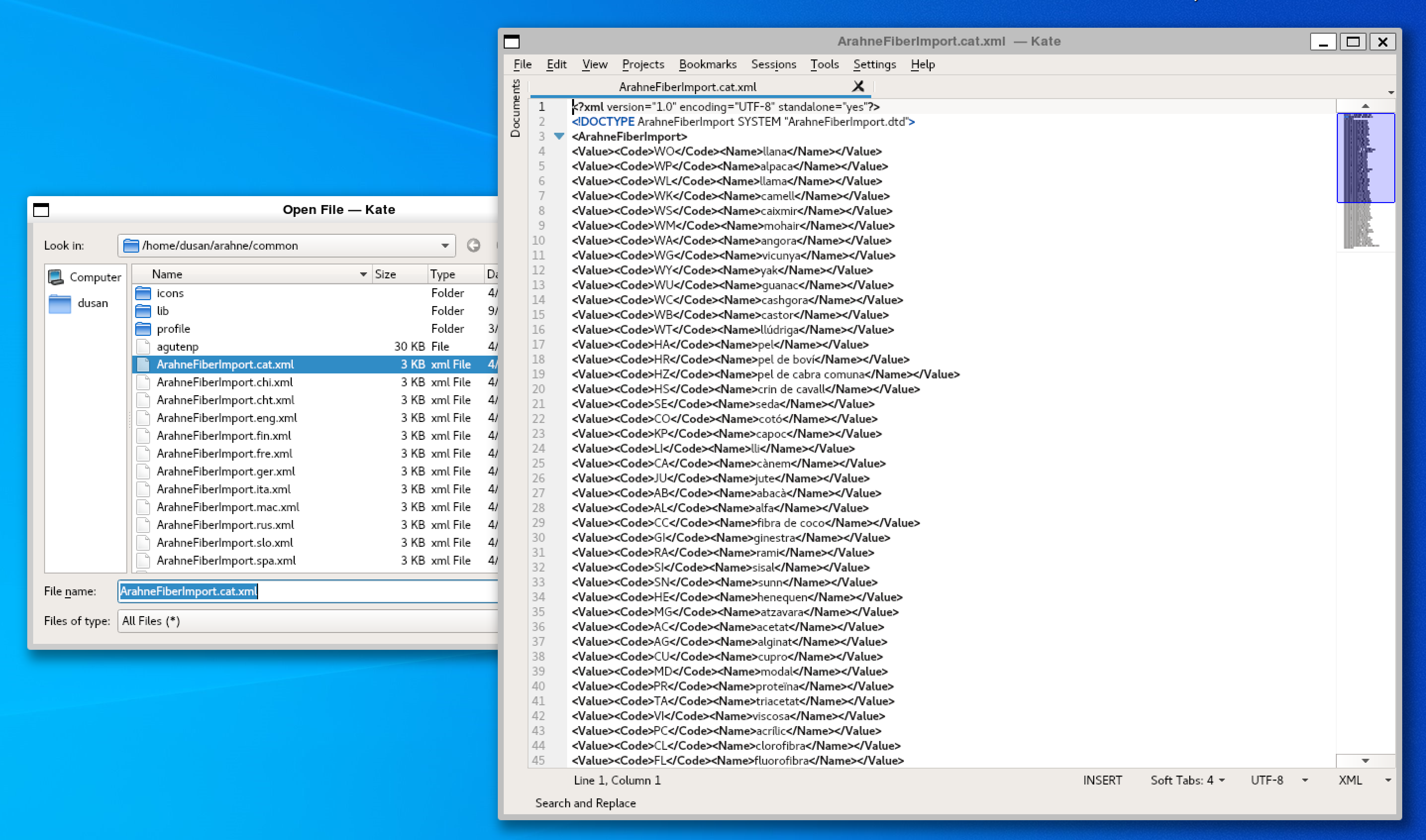
If you click on the main window while the other child windows are still open, child windows briefly go to behind main window, but then they are popped back on top. This looks like a hack and is causing unnecessary screen rendering.
If you iconize main window, the children are not inconized, they stay visible. This is confusing and not desired, since you iconize the program to temporary stop working with it. Complex applications might have 10 or more child windows, and you don't want to iconize each of them individually (if they have window manager button for that).
On restoring the main program window, child windows are in background, while parent window is on top, which should never happen.
Here is an illustration of how that looks:
Contributor guide
First steps
- Read the whole issue, then the project's contributing guide.
- Comment on the issue to say you are picking it up — it saves two people doing the same work.
- Fork the repository and make your change on a branch.
- Open a pull request that references the issue number.
Assessment
This issue has not been assessed yet.