bug(windows): Not able to set a standard hotkey for a keyboard in Keyboard Layouts View
- Dominant language
- Pascal
- Stars
- 534
- Forks
- 143
- Avg merge
- 2d 10h
- Merged PRs (30d)
- 113
Description
### Describe the bug
It is not possible to set a standard hotkey to a keyboard in Keyboard Layouts view.
### Reproduce the bug
1. Install Keyman 17.0.101-alpha build in Windows 10 OS.
2. Open Keyman Configuration dialog.
3. Download 'Khmer Angkor' keyboard using Download Keyboard button.
4. Click Keyboard Layouts tab.
5. In the Keyboard Layouts / Khmer Angkor keyboard, click 'no hotkey' link.
6. We may notice that the Change Hotkey dialog opens.
7. Select a standard key (eg., Left Alt+Shift key)
8. Click the OK button.
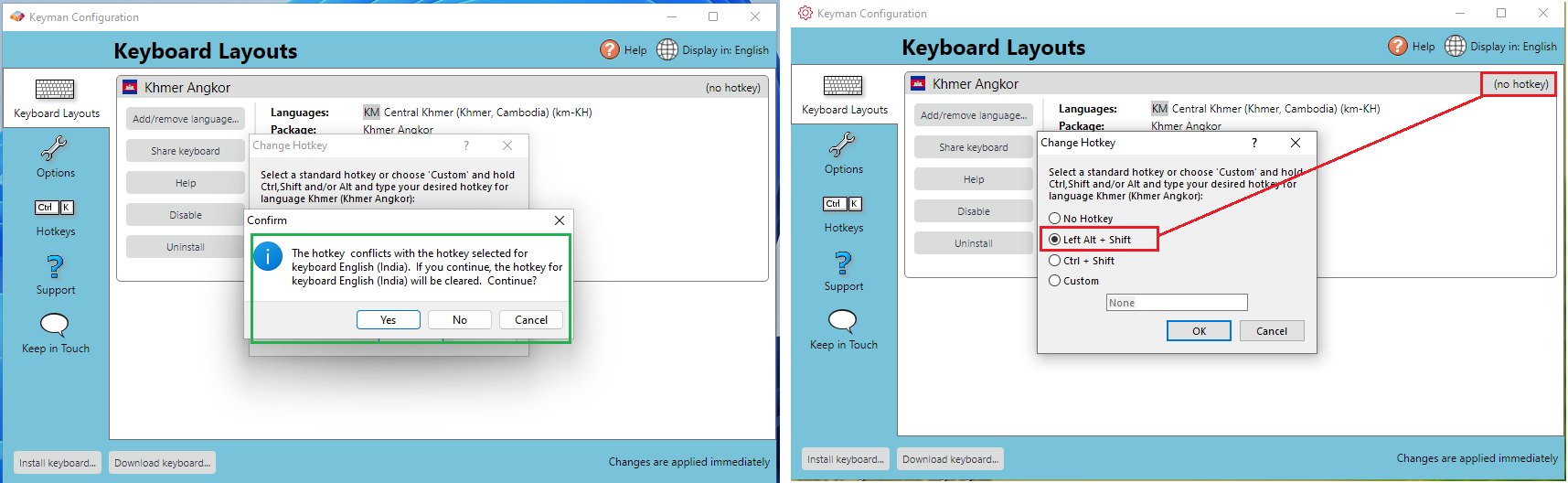
9. We may notice another warning message appears like "The hotkey conflicts with another hotkey. If you continue, the other hotkey will be cleared. Continue? with Yes , No and Cancel button.
10. Click the Yes button.
Here, I noticed that the hot key did not changed to standard key. (eg., Left Alt+Shift key). Seems to be an issue.
Note: I was able to reproduce it in Keyman 16.0.139 Stable build.
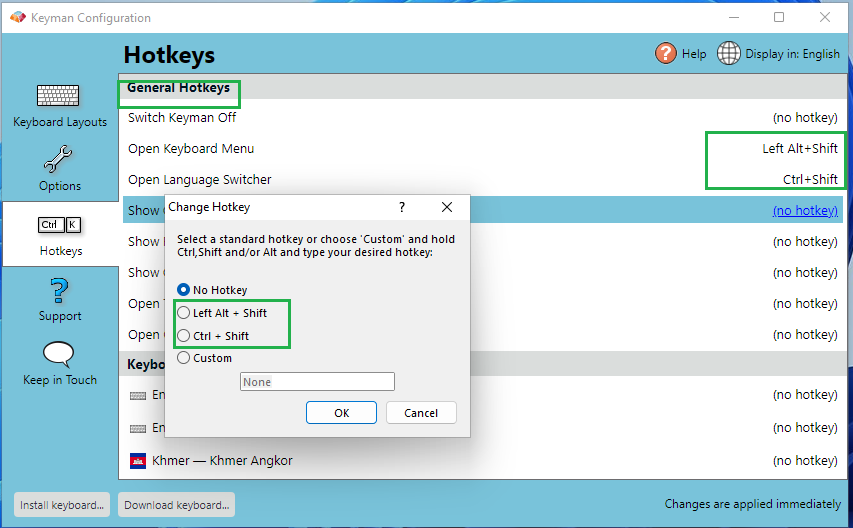
I have attached the Screenshots for reference.
..standard hot key working fine in General Hotkeys view
..standard hot key is not working for the keyboards which appears in the Keyboard layout view
### Expected behavior
It should changed to the selected standard key and appears in the Keyboard layout view.
### Related issues
_No response_
### Keyman apps
- [ ] Keyman for Android
- [ ] Keyman for iPhone and iPad
- [ ] Keyman for Linux
- [ ] Keyman for macOS
- [X] Keyman for Windows
- [ ] Keyman Developer
- [ ] KeymanWeb
- [ ] Other - give details at bottom of form
### Keyman version
17.0.101-alpha build
### Operating system
Windows 10 OS
### Device
Windows Desktop
### Target application
_No response_
### Browser
_No response_
### Keyboard name
khmer_angkor
### Keyboard version
1.3
### Language name
Khmer
### Additional context
_No response_
Contributor guide
Assessment
This issue has not been assessed yet.