guanpengchn / guanpengchn/guanpengchn.github.io
Ionic打包后运行在IOS机器的操作过程
- Dominant language
- HTML
- Stars
- 18
- Forks
- 9
- PR merge metrics
- No merged PRs in 30d
Description
首先准备一台mac,将iphone和mac用数据线连接成功,处于充电状态,并且允许调试。
安装Xcode,安装完毕后设置Accounts,并用npm安装相关包依赖,可参考文档[iOS Setup](https://ionicframework.com/docs/installation/ios "iOS Setup")

设置accounts时要注意添加Team,也就是点击上图右下角的Manage Certificates...
执行指令生成项目
```bash
ionic cordova prepare ios
```
执行过后会在项目中看到platforms目录下有ios目录产生
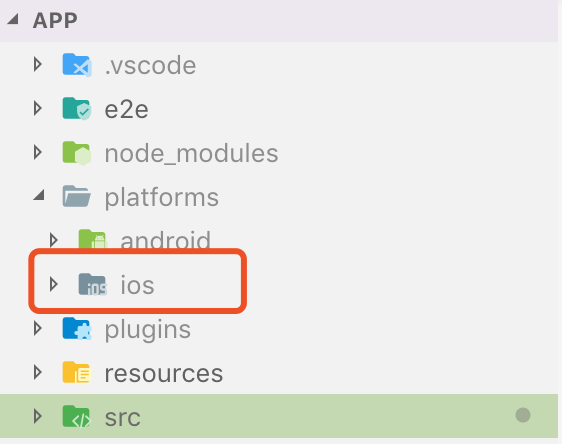
如果是第一次使用IOS开发,先打开Xcode,打开刚才的ios目录。
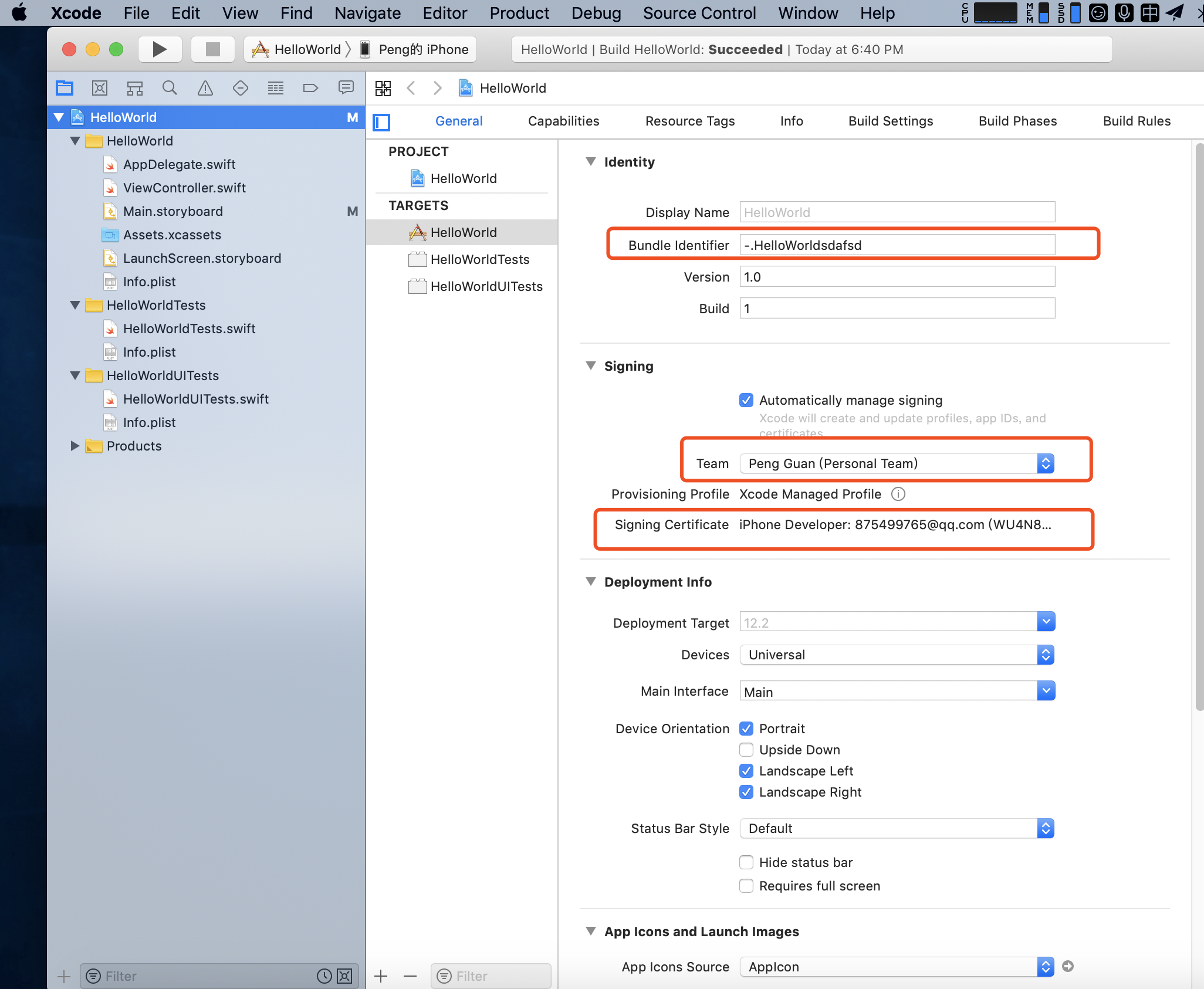
查看项目中的targets,修改bundle identifier名字,因为可能已经被占用了,然后添加Team,并且查看Signing Certificate是否有报错,而且要注意将设备改成iPhone
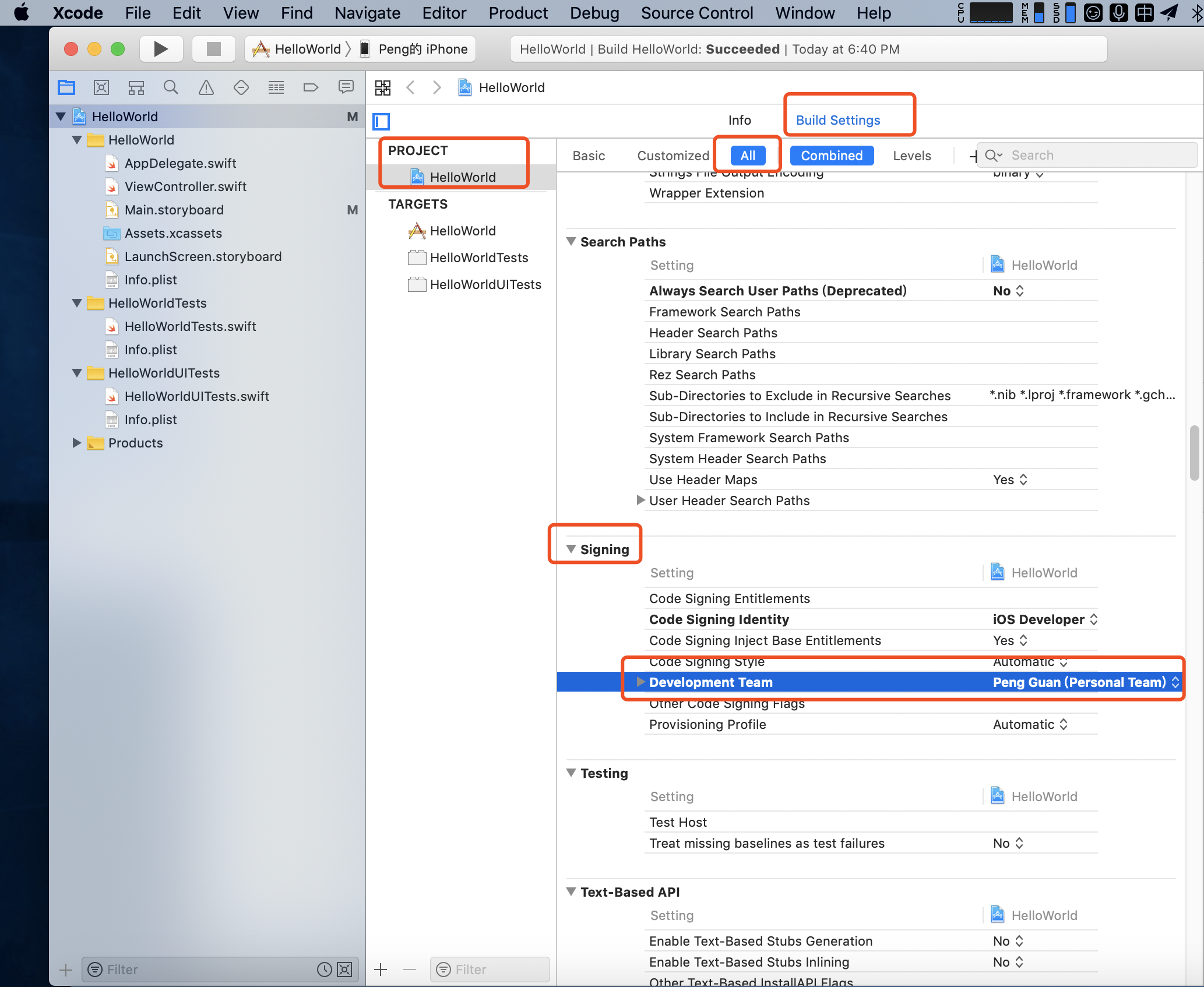
同时还要将Project中的Signing也添加Team
都做好了之后,选择File->Project Setteings
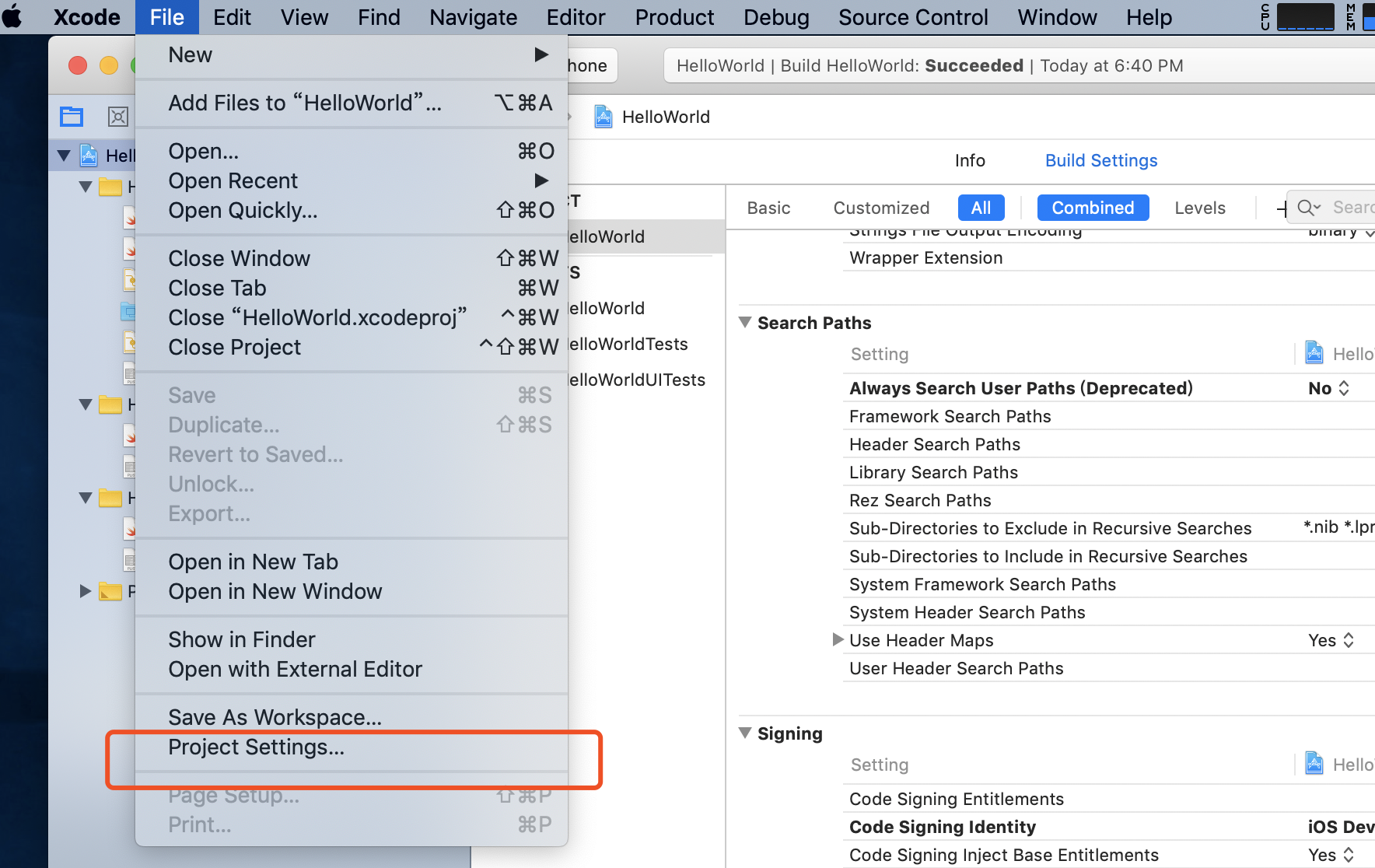
点击Legacy Build System,使用原来的编译系统,避免下方这两个error
```bash
CordovaError: Promise rejected with non-error: Error code 65
CordovaError: Promise rejected with non-error: Error code 70
```
Google上很多解决方案提到了用命令行执行原来的编译系统,但是我测试不好用
```bash
// 不好用
ionic cordova run ios -- --buildFlag="-UseModernBuildSystem=0"
```
建议使用Xcode的原来编译系统进行编译,如下图所示
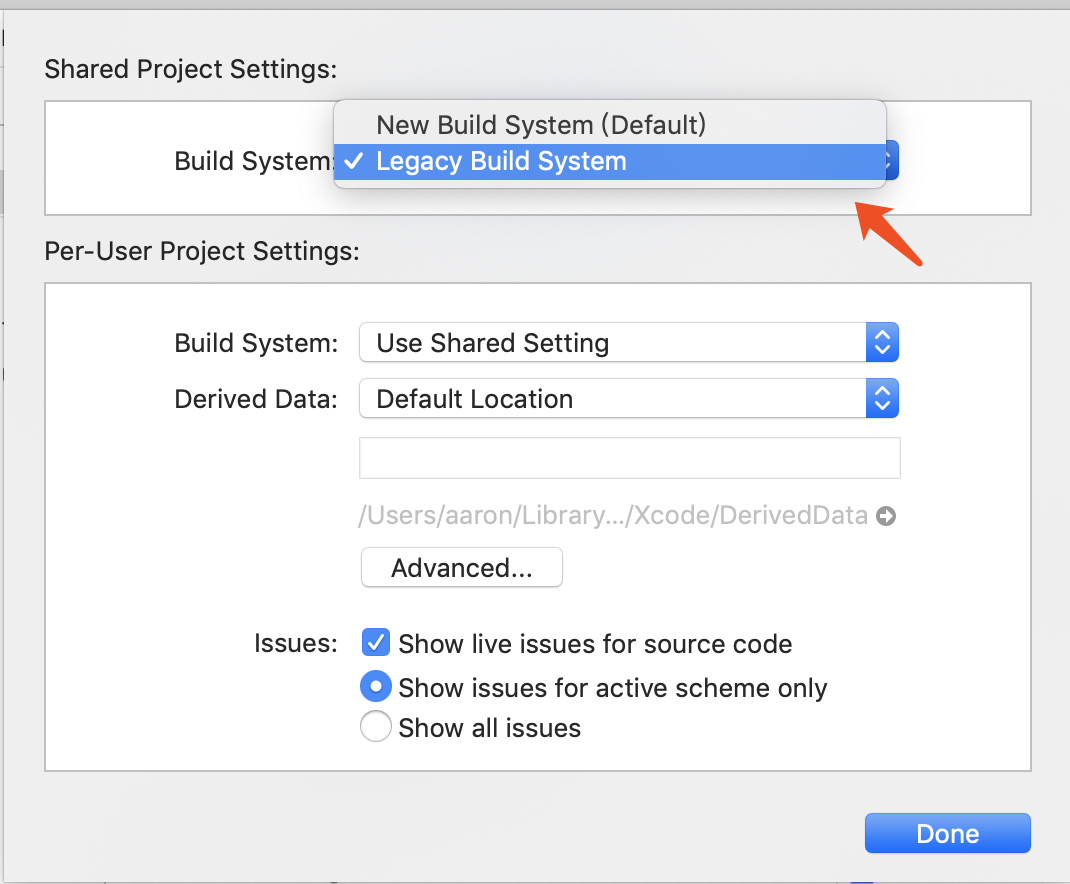
最后点击三角箭头运行,会遇到xcode提示“codesign 想要访问您的钥匙串中的密钥”,这时输入电脑登录密码即可,安装到手机上后还打不开APP,需要在手机上操作
> 设置->通用->设备管理->“你的Apple ID”->信任“你的Apple ID”->信任

这时候APP就能打开了,完成了全部工作
Contributor guide
No contributing guide indexed for this repository
Research direction
Issue 76 contains a Chinese walkthrough for preparing and running an Ionic Cordova iOS project, including the linked iOS Setup guide and the `ionic cordova prepare ios` command. Start by reviewing that guide and the documented Xcode signing and Legacy Build System steps. No specific documentation change or completion criteria are stated, so the requested outcome needs clarification first.
Written by the indexing model from the issue text.
Assessment
- Tech stack
- ios
- Domain
- documentation, mobile
- Issue type
- Documentation
- Difficulty
- 2/5
- Estimated time
- 1-3 hours
- Activity status
- Stale
- Clarity
- Needs clarification
- Newbie friendliness
- 35/100