elementary / elementary/panel-network
Wireless access points disappear after a few minutes of waiting
- Dominant language
- Vala
- Stars
- 28
- Forks
- 16
- Avg merge
- 15h 37m
- Merged PRs (30d)
- 4
Description
# Prerequisites
- [x] I have searched open and closed issues for duplicates.
# Describe the error
When opening the Network Indicator and using wireless connectivity, the wireless access points disappear after a few minutes of waiting.
This only happens when one is connected to a wireless access point. If one is not connected, the list seems to update itself every one-and-a-half minute or so. Whether the connection has been established before opening the Network Indicator or is established by way of clicking on an access point in the list does not make a difference.
## To reproduce
1. Open the network list from the Wingpanel.
2. Wait for 2-3 minutes.
3. Some or all of the access points disappear.
4. If not all have disappeared, wait for another 1-2 minutes.
5. The rest of them disappear.
## Expected behaviour
The list of wireless access points continues to update regardless of whether one is connected.
## Screenshots or screen recordings
Step 1:
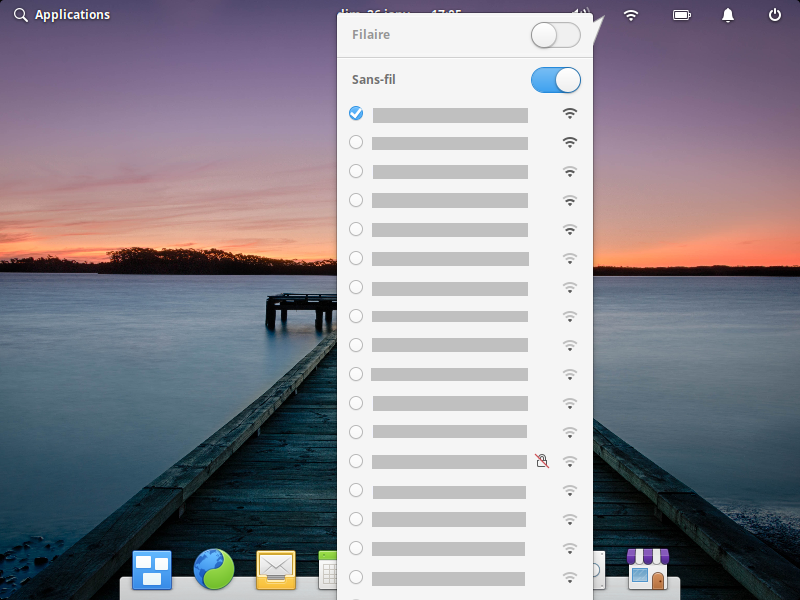
Step 3:

# Platform information

- [ ] I'm using the latest version from git that I've manually compiled
- [x] I'm using the latest released stable version
Language: French
Keyboard: English (US) - English (Dvorak intl., with dead keys)
Location: Paris
The testing system is installed on a small partition on a ThinkPad T470 laptop on which UEFI Secure Boot is disabled. Aside from specifying the language, keyboard, location, initial user, and the specific partition in which to install elementary OS, all of the default settings were used during the installation. No Internet connection was used during the installation. The only system-wide changes which have been made after the installation are that the system connects to the Internet by wi-fi via a Linksys WRT54GL Wireless Router and that [Screen Recorder](https://appcenter.elementary.io/com.github.mohelm97.screenrecorder/) has been installed via AppCentre.
# Additional context
Before this test was performed, the following steps were followed:
1. All system-wide changes from previous tests were reverted.
2. All system components were updated via the blue “Update All” button in AppCentre.
3. A new administrator user named “Essai” or “Essai 2” was created with the password “komalleana”.
4. The current user was logged out and the new user was logged in.
5. The old user was deleted, the screen resolution was set to 800x600 at 60 Hz, tap clicking was disabled, and the touchpad pointer speed was set to the maximal value.
6. The computer was rebooted.
6. The test user was logged in.
Contributor guide
Assessment
This issue has not been assessed yet.