Debugging Phoenix projects with Visual Studio Code
- Dominant language
- No language data
- Stars
- 664
- Forks
- 41
- PR merge metrics
- No merged PRs in 30d
Description
If you're anything like me and are a complete novice when it comes to the Elixir ecosystem and Phoenix, you probably wager that using a proper debugger helps you make sense of the execution flow and interiorize concepts much better.
With this in mind, I thought I'd share my experience setting up a proper environment so one can debug any Phoenix project, making it much easier to make sense of everything! And great news: it's **proper simple** ☀️ !
1. Boot up VSCode and install [**ElixirLS: Elixir support and debugger**](https://marketplace.visualstudio.com/items?itemName=JakeBecker.elixir-ls) and [**Phoenix Framework**](https://marketplace.visualstudio.com/items?itemName=phoenixframework.phoenix).
2. Restart VSCode
3. Open any Phoenix-based project. Or create your own!
4. As per **Phoenix Framework's docs**, add (or create under `.vscode`) the following to your `settings.json` file:
```json
"emmet.includeLanguages": {
"phoenix-heex": "html"
}
```
5. You should be sorted! 🎉
### Further information
On first run, ElixirLS will run a project analysis and index everything. This might take some time. You can see the progress under `Output` in VSCode.
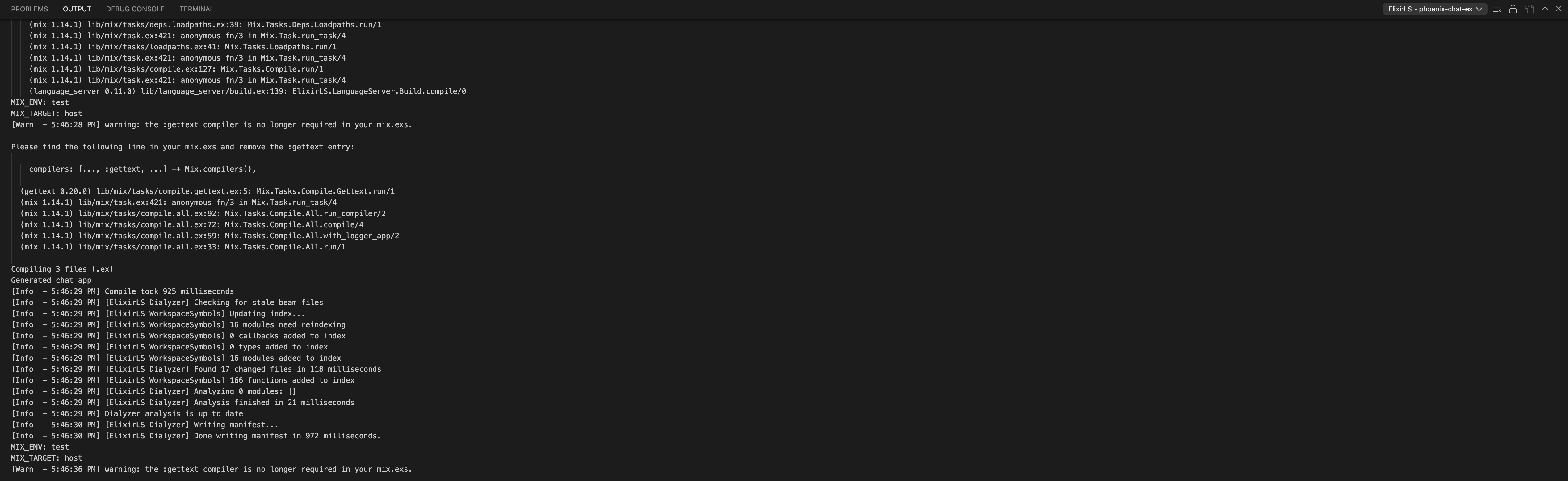
Sometimes, when 'go-to-reference' doesn't seem to work, it's probably because there was an error indexing (it's what happened to me!). Check the `Output` and choose ElixirLS in the right combobox and check the traces. Most of the times,deleting the created `.elixir_ls` folder and re-opening the project will force reindexing and solve the problem 😄 .
### Hurray you can now debug!
Now it should be super easy to debug!
Simply go to the side panel and "create a launch.json file".

Now just make sure you have this same configuration and you're done!
```json
{
"version": "0.2.0",
"configurations": [
{
"type": "mix_task",
"name": "mix (Default task)",
"request": "launch",
"task": "phx.server", // add this
"projectDir": "${workspaceRoot}",
"env": {
"TEST_VAR": "foo"
}
},
{
"type": "mix_task",
"name": "mix test",
"request": "launch",
"task": "test",
"taskArgs": [
"--trace"
],
"startApps": true,
"projectDir": "${workspaceRoot}",
"requireFiles": [
"test/**/test_helper.exs",
"test/**/*_test.exs"
]
}
]
}
```
Now you can you can press `F5` (or `Run > Start debugging`) and start debugging! This is what it'll look like!

Happy debugging! 🎉 🎉
Contributor guide
Assessment
This issue has not been assessed yet.