Better documentation around setting up SSL Server Certs for clients/utilities interacting with Chef Server.
Nobody has claimed this yet.
- Dominant language
- HTML
- Stars
- 143
- Forks
- 438
- Avg merge
- 1d 10h
- Merged PRs (30d)
- 16
Description
User Story
As a chef infra or automate server owner, I will use this work when I want to troubleshoot issues with clients validating the presented SSL Certificates.
Description
After installing a new Chef Infra Server or Automate Server, or updating the certificate on a Chef Server or Automate Server, you will sometimes see the error unable to get local issuer certificate when you try to connect via knife or when chef-client runs. There are a couple possible reasons for this.
- Your server isn't presenting the entire certificate chain. When setting up your certs, you should have the certificates for your server, the issuer certificate (if it exists), and the CA certificate all as part of the cert chain you're presenting to the client. In Automate, this configuration looks like this:
[[global.v1.frontend_tls]]
# The TLS certificate for the load balancer frontend.
cert = """-----BEGIN CERTIFICATE-----
<your certificate>
-----END CERTIFICATE-----
-----BEGIN CERTIFICATE-----
<your intermediate certificate (if it exists)>
-----END CERTIFICATE-----
-----BEGIN CERTIFICATE-----
<your root CA certificate (if an internal CA)>
-----END CERTIFICATE-----
"""

# The TLS RSA key for the load balancer frontend.
key = """-----BEGIN RSA PRIVATE KEY-----
<your private key>
-----END RSA PRIVATE KEY-----
"""
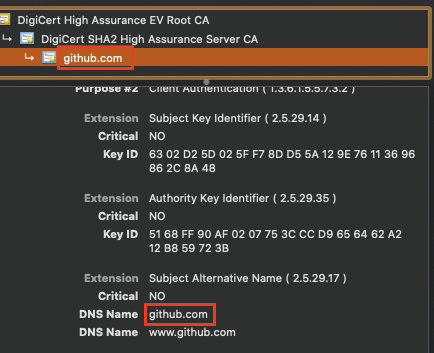
- When creating an internally signed certificate, current versions of OpenSSL shipped with Chef's embedded Ruby need to validate the Subject Alternative Name extension. There should be a DNS entry in that extension that matches the Subject of the certificate. Most providers do this by default, but some internal CA's do not, and it needs to be part of the cert request specifically.
You should be able to validate that you're presenting the full cert chain by running openssl s_client -connect <your_chef_server_fqdn>:443 -showcerts and checking the output. You should see at a minimum, two certs returned by the server when you connect to it.
You can validate the SAN extension by examining the certificate from a browser window. There is a section in the certificate view where you can see entries in the SAN extension.
Chef Version
These are needed configurations for SSL validation for all supported versions of Chef-Client and Chef Workstation when interacting with Chef Infra Server or Chef Automate
Platform Version
All OS's.
Definition of Done
Expanding the SSL setup instructions for Chef Infra Server to include adding in an intermediate and root CA cert will help a lot of people. We might also want to link folks an article or give a quick guide in how to add a DNS Entry to the SAN extension of their CSR (certificate request).
Contributor guide
First steps
- Read the whole issue, then the project's contributing guide.
- Comment on the issue to say you are picking it up — it saves two people doing the same work.
- Fork the repository and make your change on a branch.
- Open a pull request that references the issue number.
Research direction
No file or test is named. Start by locating the existing Chef Infra Server SSL setup instructions, then use the issue's certificate-chain and SAN validation cases as the documentation checklist. Done means the instructions cover intermediate and root certificates, include the openssl s_client check, and explain how to add or verify a DNS SAN entry.
Written by the indexing model from the issue text.
Assessment
- Tech stack
- ruby
- Domain
- documentation, security
- Issue type
- Documentation
- Difficulty
- 3/5
- Estimated time
- 1-2 days
- Activity status
- Stale
- Clarity
- Mostly clear
- Newbie friendliness
- 55/100