bitshares / bitshares/bitshares-ui
[Wallet Redesign] Exchange (Mobile)
- Dominant language
- JavaScript
- Stars
- 520
- Forks
- 575
- Avg merge
- 12h 7m
- Merged PRs (30d)
- 5
Description
### Mobile Exchange
Exchange is the most complicated feature to use on mobile devices and its UX should be really clear and comfortable to satisfy all bitshares users needs.
The first important entrance point to Exchange is the list all markets.
### Table-View (Simple / Default ) List
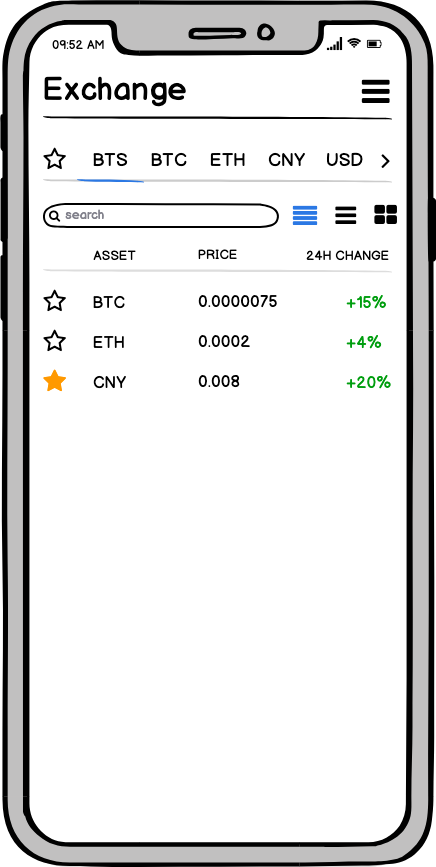
The list of markets has the following options:
1. Filter of pair in the top side. There user can select a currency (BTS/BTC/ETH etc.) or “Favorite” (star) pairs.
2. User can search for a pair using “search” field
3. User can change a type of visual presentation. The first screenshot is a simple table-view.
There are 2 additional views:
### Detailed list
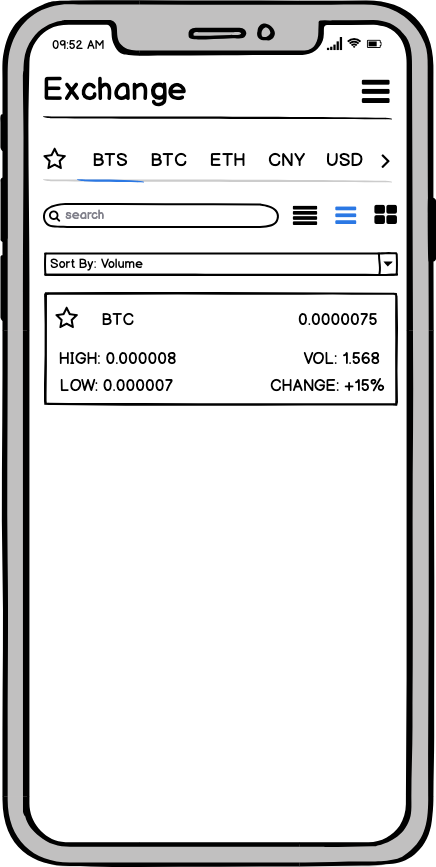
The detailed list provides additional information about the pair and an ability to filter these pairs by additional parameters like Volume and High/Low Price for 24h.
### Tile List
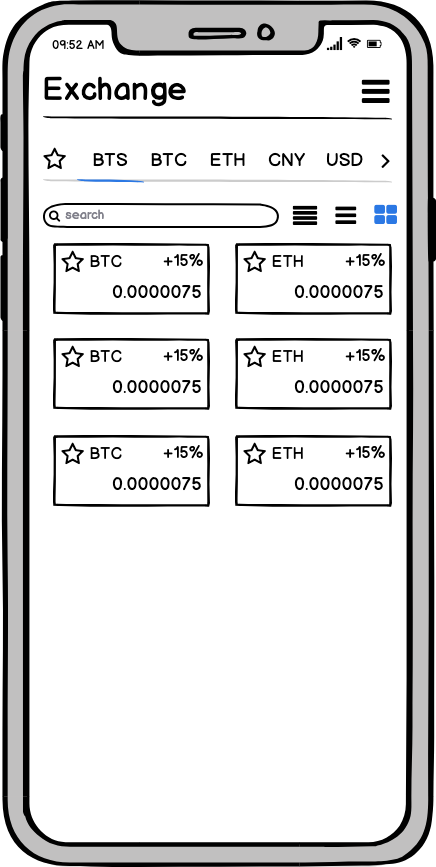
This view displays the same information as table view just look different. It is low priority screen because it has only aesthetic preferences.
When the user selects some pair he sees the “EXCHANGE” view:
### Exchange View
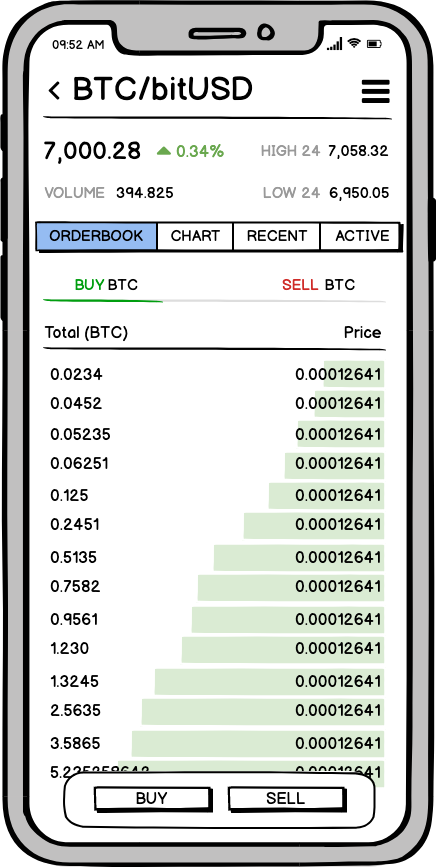
On the Exchange layout you can **always** see:
1) Pair name in the top left corner
2) Pair data (price, change, volume, low, high)
3) Buy / Sell controls on the bottom side.
All these features always visible on a user screen in Exchange.
Let’s talk more detailed about each screen and its features.
### Orderbook
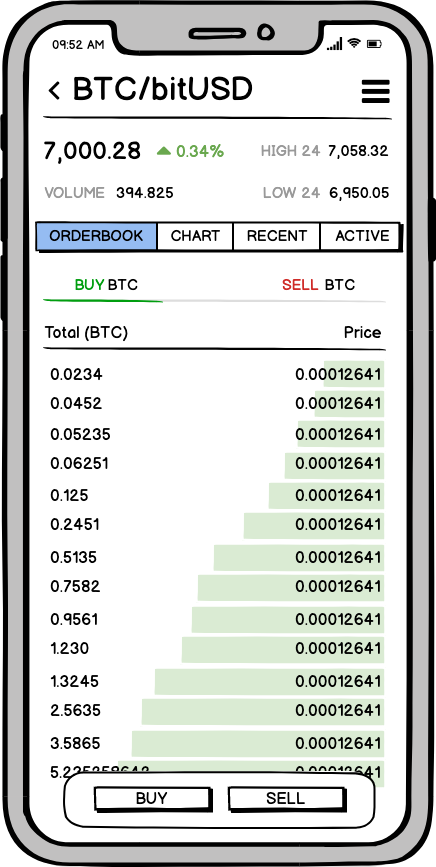
On the order book, you can see Buy/Sell orders. To toggle between list user can use tabs “Buy BTC” or “SELL BTC”.
Click on any order within order book table will call a “Buy/Sell” window with a pre-filled price/total sum (logic is the same as on a current Exchange desktop version)
### Chart
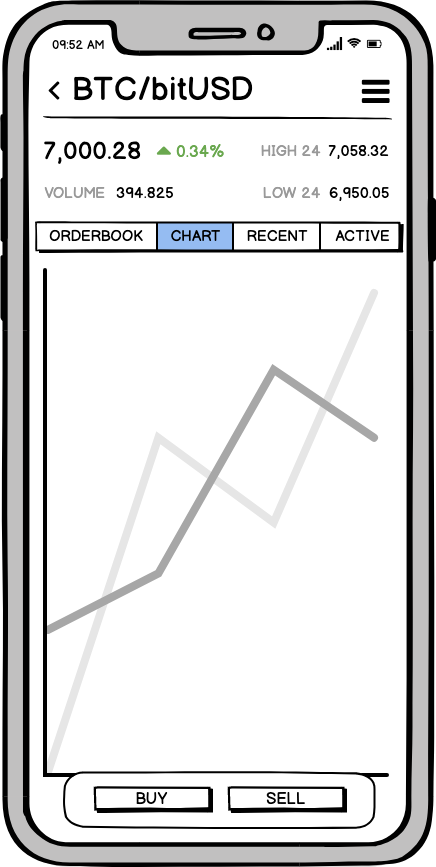
The “Chart” view is a screen with a TradingView chart and that’s it. Nothing more. The idea of this screen is to help traders to use benefits of TradingView and its features to help them to do their job.
### Recent
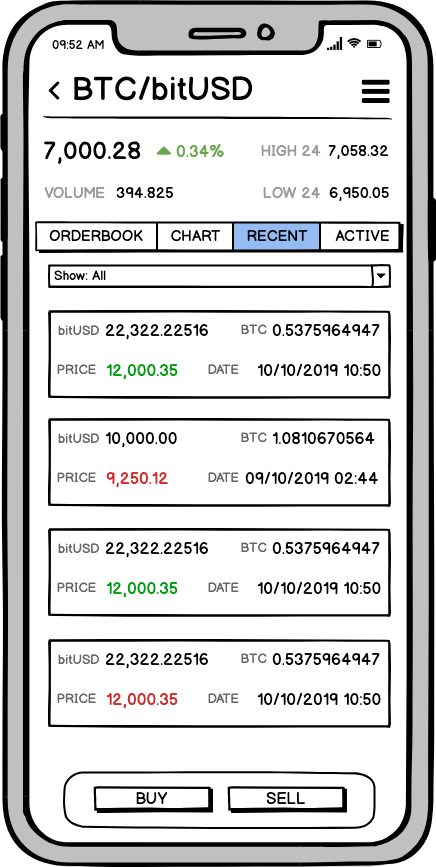
Recent activity is a list of closed (filled) orders related to the current user account. It is possible to filter the list of recent activity by the following parameters:
- All
- Buy Only
- Sell only
### Active Orders
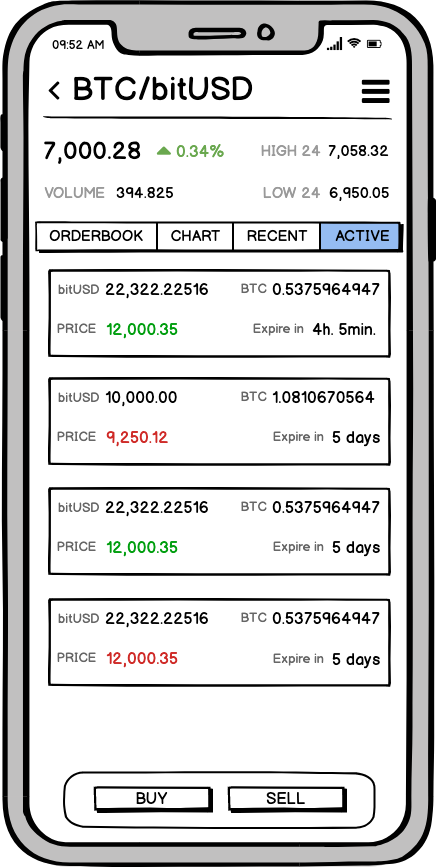
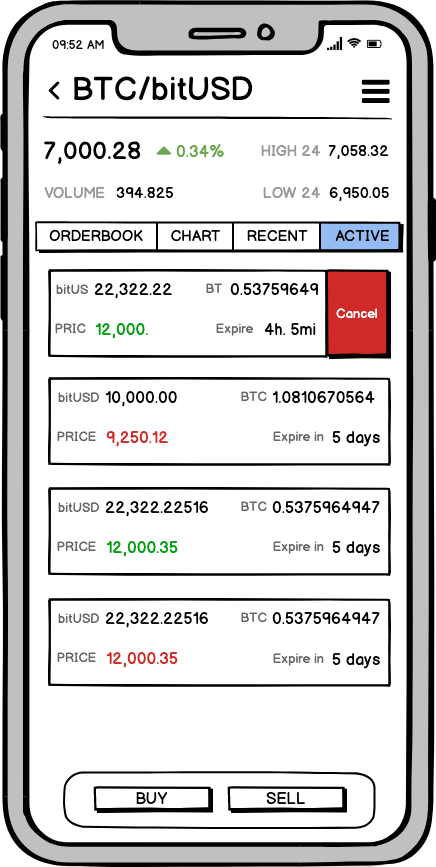
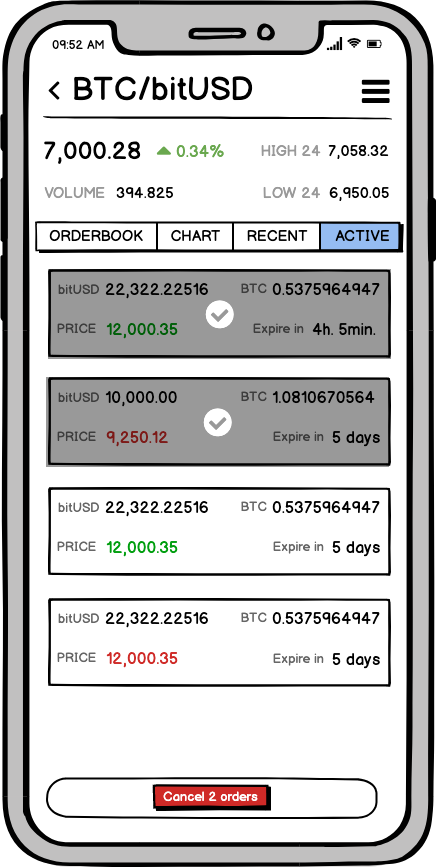
Active orders is a tab where the user can find all active orders related to a current pair.
User can cancel any order by swipe it left and click on a cancel button:
Also, the user can click on any active order to select multiple orders and cancel all of them:
Contributor guide
Assessment
This issue has not been assessed yet.