RocketChat / RocketChat/Rocket.Chat
eMail "Your account was approved" not using template and is not configurable
Nobody has claimed this yet.
- Dominant language
- TypeScript
- Stars
- 46.1k
- Forks
- 13.9k
- Avg merge
- 3d 3h
- Merged PRs (30d)
- 130
Description
Description:
In Administrator / eMail you can configure eMail notifications sent to users as well as the email header and footer, which gives pretty well looking emails to users, i.e. in the registration process.
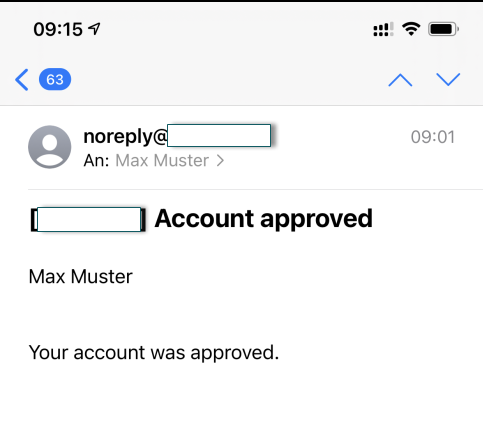
But the confirmation which is sent to a user when an admin has approved his account, is not configurable. Neither it's using the header and footer. Here the user just gets a simple, ugly text-only email:
User Name
Your account was approved.
This email text should be configurable like all the others and using the email header and footer, so the layout matches all the other emails the user gets.
Steps to reproduce:
- A user registers an account. The server is set that a new account must be approved by an admin.
- The user gets the well looking welcome email
- The admin activates the new user
- The user just gets an ugly email with the contents above, text is not configurable and it's not using the usual email template (header and footer)
Expected behavior:
The text of the email should be configurable in "Administration" --> "E-Mail" and the email uses the configured header and footer, so it looks like any other emails (with the logo and well formattet).
Actual behavior:
The text is not configurable and the email looks ugly.
Server Setup Information:
- Version of Rocket.Chat Server: 3.7.1
- Operating System: Ubuntu 20.04
- Deployment Method: manual (tar)
- Number of Running Instances: 1
- DB Replicaset Oplog:
- NodeJS Version: v12.14.0
- MongoDB Version: 4.0.20
Client Setup Information
- Desktop App or Browser Version: Not involved in the issue
- Operating System: Not involved in the issue
Additional context
Relevant logs:
Contributor guide
First steps
- Read the whole issue, then the project's contributing guide.
- Comment on the issue to say you are picking it up — it saves two people doing the same work.
- Fork the repository and make your change on a branch.
- Open a pull request that references the issue number.
Research direction
Start by tracing the account-approval email described in the issue and compare it with the configurable email notifications and shared header/footer behavior. Identify where the approval message is generated and how the Administration > E-Mail settings are applied; done means the message is configurable and uses the configured header and footer.
Written by the indexing model from the issue text.
Assessment
- Tech stack
- typescript
- Domain
- authentication, backend
- Issue type
- Bug
- Difficulty
- 4/5
- Estimated time
- 3-5 days
- Activity status
- Stale
- Clarity
- Mostly clear
- Newbie friendliness
- 35/100